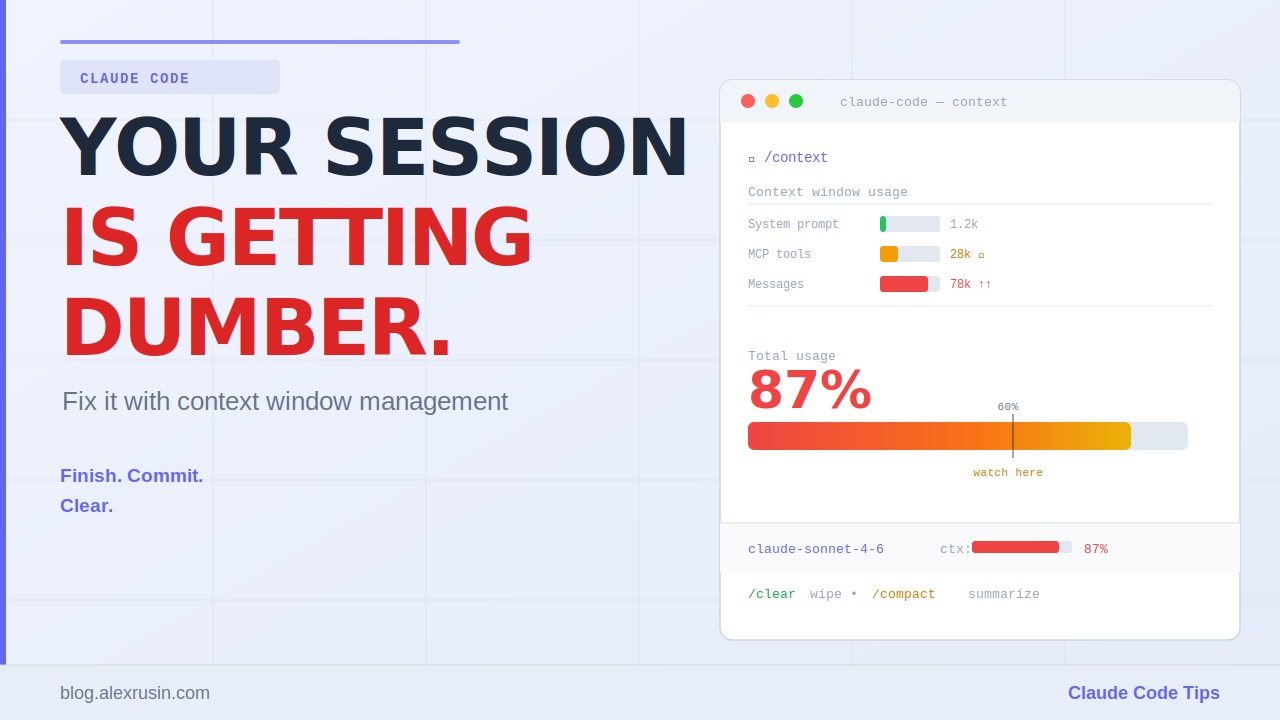
Claude Code Context Window: How to Stop Getting Dumber Answers the Longer You Code
Coding sessions that start sharp and slowly drift into mediocre output aren’t a model problem — they’re a context problem. The Claude Code context window is a fixed working memory budget, and most developers burn through it without realizing it. By the time you’re three unrelated tasks deep in one session, Claude is buried under everything it’s ever seen — and you’ve been getting quietly worse answers for a while before any warning appears.
What Actually Eats Your Context
Four things silently drain your context budget. Every message you send and every reply Claude sends back. Every file Claude reads in full. Every command output — including long build logs and stack traces. And the one most developers overlook: MCP server tools. Their definitions load into context whether you use them that session or not. Newer versions of Claude Code use load-on-demand MCP, which helps significantly — one session showed a Chrome DevTools MCP costing only around 2,200 tokens instead of the ~30% chunk older setups consumed. If you’re using MCP tools, check whether your setup supports on-demand loading.
The 60% Rule: When to Start Paying Attention
A session at 90% context isn’t just slower — it’s dumber. Instructions from earlier in the conversation get buried. Nuance gets lost in the middle. Claude starts making mistakes it wouldn’t make in a clean window. The useful threshold to watch is around 60% usage. That’s not a panic point — it’s a signal to start wrapping up the current task, not to scramble. Waiting until 95% means you’ve already been getting degraded answers for a while without knowing it.
Make Context Visible Without Breaking Flow
Claude Code has a /context command that shows a full breakdown of session usage by category — system prompt, MCP tools, memory files, messages, and free space. The problem is that stopping to type it constantly kills momentum. A better setup: run this command once in your terminal:
/status line show model name and context percentage with a progress bar
Claude Code writes the script, saves it, and wires it up automatically. Your context percentage then sits permanently in a status bar at the bottom of the screen. One 30-second setup, zero ongoing interruption.
How to Fix the Problem
/clear — Clean Slate
/clear wipes the conversation history completely. Claude re-reads your CLAUDE.md file if you have one, and still has access to your files — but all the back-and-forth, the dead ends, the unrelated tangents are gone. The rule worth building as a habit: clear after every commit. A commit means the task is done, tested, and saved to your git history. There’s nothing left in context worth carrying forward.
/compact — Soft Reset
When you want to keep some continuity, /compact summarizes everything so far and continues on top of that summary instead of deleting it outright. Claude also runs this automatically around 90–95% usage. The tradeoff: compaction can lose detail in the summary. Use /clear when the task is truly done; use /compact when you want to lighten the load without a hard break.
The Two-Strike Rule
If Claude goes down the wrong path and you correct it, then it goes down the wrong path again — stop. Don’t keep piling corrections onto the same session. The failed attempt is sitting in context and will keep pulling Claude back toward it. Clear and write a better prompt using what you just learned. It feels slower in the moment. It’s faster overall.
Key Takeaways
- The Claude Code context window is a fixed working memory budget that quietly degrades output well before it’s full — 60% is the real threshold to watch, not 90%.
- MCP server tool definitions load into context by default; check whether your setup supports on-demand loading to save up to 30% of your budget.
- Run
/status line show model name and context percentage with a progress baronce to get a permanent context indicator without ever typing/contextagain. /cleardeletes the session history;/compactsummarizes it — use clear after every commit, compact when you need continuity but a lighter context.- When Claude repeats a mistake after correction, don’t keep correcting in the same window — clear and write a better prompt instead (the two-strike rule).
Conclusion
Your context window is the most valuable resource in a Claude Code session, and most developers fill it with leftovers. Treat it like working memory: keep it clean, know where it stands, and reset it deliberately. New task, new session. Finish, commit, clear.